HyperDroid - PC Launcher
- 4.5
- Rating
- 1.00M
- Installs
- Free
- Price
 Analysis by App-foxy
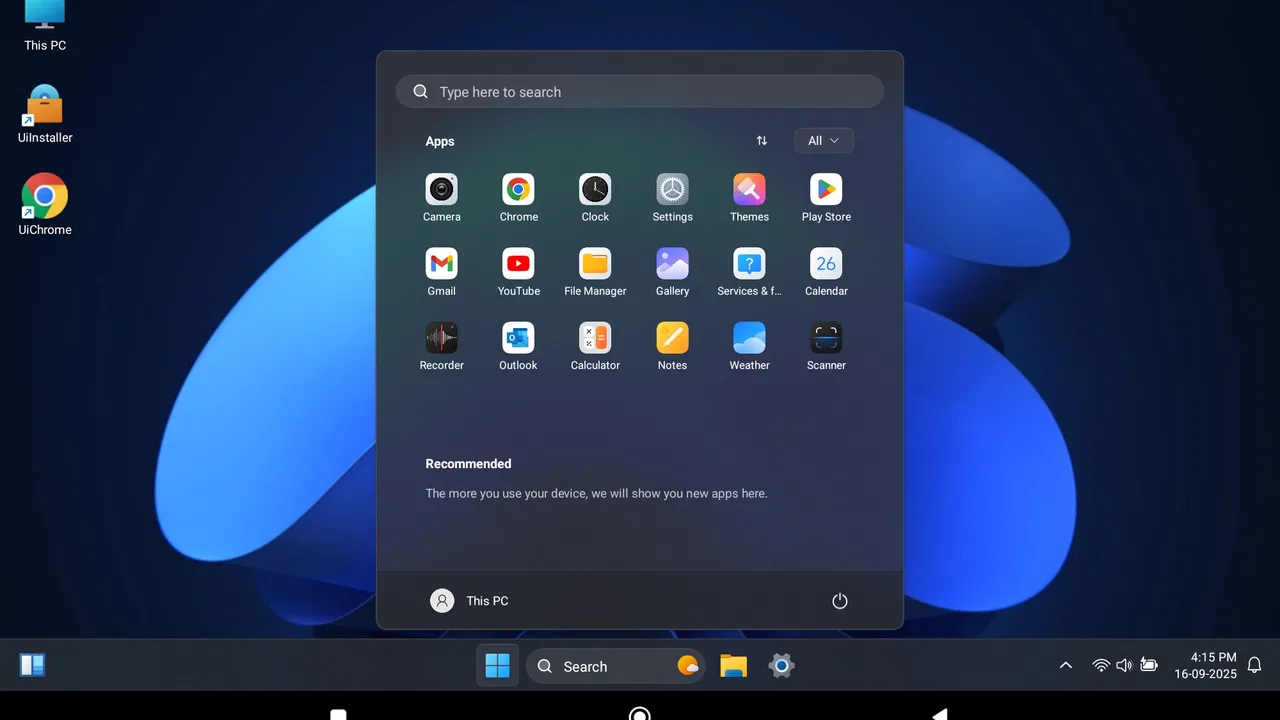
HyperDroid - PC Launcher is an Android personalization app from binary inc. that tries to make a phone feel closer to a desktop computer. I approached it less like a decorative theme and more like a change in the way I move through Android: instead of treating the home screen as a simple row of app icons, it presents a PC-inspired starting point for launching and organizing everyday tasks.
That idea is appealing if you regularly switch between a phone and a computer, use a large display, or simply prefer a structured desktop-style layout. It is also interesting from an accessibility perspective because a familiar visual hierarchy can reduce the effort needed to remember where things are. At the same time, a launcher can only improve the parts of Android it controls. It does not automatically solve every issue involving small touch targets, visual clutter, gestures, or apps that use their own interfaces.
I found the app most convincing when I treated it as a practical workspace rather than a novelty. The best question is not whether it makes a phone look like a PC, but whether its organization helps you reach the apps and actions you use repeatedly. For some people, that shift can make a handset feel calmer and more predictable. For others, the extra desktop metaphor may add a layer they do not need.
You May Also Like

 Blood Strike: 2.5 Anniversary
Blood Strike’s Loadouts Turn Every Drop Into a Tactical Gamble
A close look at Blood Strike’s custom loadouts: how fast access to signature weapons reshapes its battle royale rhythm, rewards preparation, and narrows the gap between fights.

 Pandora - Music & Podcasts
Pandora’s Music Is Easy to Start, but Harder to Recover
Pandora’s strength is its low-effort path from a seed to a station. Its weak spot is how much confidence it asks you to place in connection, setup, and quiet recovery.

 8 Ball Pool
 Is Built on Rivalries, Rematches, and Routine
A close look at the rivalries, rematches, shared routines, and unanswered safety questions that turn a quick pool match into a persistent mobile community.

 Samsung Music
’s Quiet Strength Is Playing What You Already Own
Its reach comes less from spectacle than from dependable access to a personal library. That simplicity is both the app’s strongest retention engine and its ceiling.

 AccuWeather: Weather Radar
AccuWeather Review: A Quick, Clear Forecast for Everyday Decisions
For everyday plans, the best forecast is the one you can understand quickly. AccuWeather makes rain timing, radar, and local conditions easy to act on, with a few trade-offs.

 Hill Climb Racing
Why Hill Climb Racing Still Turns Crashes Into One More Run
A tiny car, a bumpy hill and one more upgrade: Hill Climb Racing keeps resurfacing because its simple chaos makes every near-miss feel personal.
More From Our News Desk



How the desktop approach affects readability and navigation
I use the heading on readability and navigation to look beyond the desktop resemblance and consider how the layout supports quick recognition during ordinary tasks. A useful test is to notice whether I can find a familiar destination at a glance in different lighting and after a pause, rather than relying on the memory of where I just tapped. That leads naturally to the next section: access also depends on touch, comfort, and the situation I’m in.
A familiar structure can reduce mental effort
The central strength of HyperDroid is its attempt to give Android a desktop-oriented starting point. If you are comfortable with computer desktops, the concept is immediately understandable: you expect a main workspace, recognizable shortcuts, and a more deliberate sense of where applications belong. That familiarity matters for people who find conventional phone home screens too loose or too visually uniform.
In my experience, the value of this kind of launcher comes from consistency. When the same few apps are always reached through the same area or visual grouping, I spend less time scanning every icon. That can help someone who has difficulty with short-term recall, gets distracted by crowded screens, or is setting up a phone for a relative who already understands computers better than smartphones.
There is a useful distinction here between visual resemblance and actual usability. A PC-like appearance is not automatically easier to read. Tiny icons, dense arrangements, low-contrast labels, or decorative elements can make a desktop imitation harder to use than a plain Android launcher. I therefore judged the experience by how quickly I could identify a target, not by how convincing the theme looked.
Organization is more important than the visual novelty
A practical setup starts with a small number of high-priority destinations. I would place communication, calendar, navigation, camera, and the settings I use most often where they can be recognized without prolonged searching. Less frequent apps should not compete with those essentials. This is one of the most useful ways to approach the launcher: use the desktop idea to create a clear hierarchy rather than filling the workspace with every available shortcut.
That workflow is particularly helpful on a device shared with another person. A simplified arrangement can make the first screen communicate its purpose immediately. Someone who is not comfortable with Android conventions may understand a computer-like workspace more quickly than a page of unexplained symbols. The trade-off is that the setup takes thought. A launcher cannot decide which apps are genuinely important for each person, so the initial organization is part of the work.
I also recommend testing navigation when the phone is used one-handed. A layout that looks balanced across the screen may place important controls too far from the thumb. People with limited reach, reduced dexterity, or fatigue in one hand may prefer a deliberately uneven arrangement that keeps frequent targets close. Aesthetic symmetry is less valuable than a comfortable path to the actions that matter.
Where readability can still become difficult
Desktop conventions can introduce their own visual density. Multiple labels, panels, icons, and status elements may create more things to interpret than a minimalist home screen. Users with low vision, attention-related difficulties, or sensitivity to visual clutter should spend time checking whether the launcher feels calmer or busier on their particular display.
I would not assume that a familiar PC layout automatically provides large text, strong contrast, or enlarged touch areas. Those needs depend on the phone, Android settings, and the launcher’s own presentation. Android’s system-level text and display adjustments remain important, and they should be tested with the launcher rather than treated as a separate afterthought.
One useful test is to perform a common task after a short break: open a messaging app, find the camera, or reach a system setting without relying on memory from the previous attempt. If the route still feels obvious, the organization is doing real work. If you repeatedly pause to interpret the screen, the desktop styling may be more attractive than effective.
Motor, sensory, and situational access in daily use
I approach daily access as a whole interaction, not just the moment I tap an icon: grip, fatigue, glare, and the interface I enter next can all change how manageable a route feels. I’d test the same routine with the phone held as I normally use it, then check whether the launcher’s clear starting point continues to help once an app opens. The next section considers how those conditions shape the experience in practice.
Touch effort matters more than appearance
A launcher sits at the beginning of many phone interactions, so small design decisions can multiply. If I need to tap a tiny icon, make a precise gesture, or hit a control near the edge of the display every time I open an app, that friction becomes noticeable. It is especially relevant for users with tremors, limited fine-motor control, joint pain, or difficulty maintaining a steady grip.
For that reason, I would arrange the workspace around broad, easy-to-identify targets and keep the most-used items away from awkward corners when possible. I would also avoid creating a layout that requires repeated dragging or precise repositioning just to reach routine apps. The desktop metaphor is most inclusive when it supports direct recognition and simple taps, not when it turns navigation into a sequence of fiddly actions.
A person who relies on a stylus may experience the launcher differently from someone using a thumb. Likewise, a phone in a case can change how comfortable edge controls feel. These are not flaws unique to HyperDroid, but they are reasons to evaluate the app in the physical setup where it will actually be used.
Visual and sensory comfort is personal
Some users enjoy a computer-like interface because it gives the screen a stronger sense of order. Others may find extra panels, icons, or persistent visual elements tiring. People with light sensitivity, migraines, visual processing differences, or attention difficulties should look for a configuration that keeps the workspace quiet and predictable rather than trying to reproduce every desktop convention at once.
I found that the best approach is to begin with the least busy arrangement that still feels useful. Add only the shortcuts that support a real routine, then live with the setup for a day. This reveals whether the launcher helps during quick interactions or merely looks impressive during the first few minutes. It also makes it easier to identify which visual elements are essential and which are distractions.
Audio access deserves a similar practical check. A launcher may organize the route to an app, but the sounds, spoken feedback, alerts, and controls inside that app remain separate concerns. Someone who depends heavily on screen reading or alternative input should test the complete path from the launcher into frequently used applications. A visually clear starting point is helpful, but it should not be mistaken for a complete assistive environment.
Why context changes the experience
At home, I can take time to learn a new workspace and adjust it carefully. On a bus, in bright sunlight, while wearing gloves, or during a rushed phone call, the same layout is judged by speed and tolerance for mistakes. This is where a PC-style launcher can either prove its worth or expose its weaknesses.
Imagine checking a transit app while carrying a bag. A good arrangement puts that app in a predictable, reachable location. A poor arrangement forces you to search through a decorative desktop, use a gesture you cannot perform comfortably, or distinguish between several similar icons under glare. The launcher does not control the lighting or your grip, but its organization can reduce the number of decisions required.
Another realistic situation is handing the phone to someone who needs one specific function. A clear workspace can make it easier to say, “open the calendar” or “tap the camera,” without explaining Android’s usual home-screen behavior. However, if the person is already familiar with the standard launcher, changing the navigation model may create confusion. Familiarity is an advantage only when it matches the user’s previous experience.
Useful workflows beyond the first impression
One non-obvious benefit of a desktop-inspired launcher is that it encourages me to separate “launching” from “storing.” I can reserve the main workspace for actions that start a task and keep less frequent apps out of the immediate path. That distinction is useful for people who tend to lose important apps in an expanding collection of icons.
A second insight is that the launcher can serve as a transition tool for households where one person uses a computer and another uses a phone. Rather than teaching every Android convention at once, I can build around the visual language the person already understands. This will not remove the need to learn app-specific controls, but it can make the first step less intimidating.
A third trade-off involves switching costs. If I move between HyperDroid and a conventional Android launcher, the same app may feel differently located or visually framed. People who frequently borrow devices, support several family phones, or use work and personal profiles may prefer the standard launcher’s consistency across Android devices. HyperDroid makes the most sense when its workspace becomes the user’s stable home base.
A fourth practical tip is to judge it after a routine, not after customization. Set up only the apps needed for a normal morning, then try opening them in the order you usually do. This exposes unnecessary navigation, awkward reach, and visual competition much faster than experimenting with the appearance for an hour.
What the app does not change
The app is a launcher, not a replacement for Android or for the applications installed on the phone. Once I open a browser, messaging service, banking app, or video player, that app’s own layout and accessibility behavior take over. If your main difficulty is inside those applications, a new home screen may offer only limited relief.
The same applies to system settings, notification behavior, keyboard use, and device-specific accessibility tools. HyperDroid can influence how I begin a task, but it cannot guarantee a uniform experience across the entire operating system. This boundary is important for anyone choosing it as part of an accessibility strategy.
There is also a learning curve for people who expect Android’s familiar home screen. Even if the desktop idea feels intuitive to computer users, it can be unnecessary for someone who prefers a simple app drawer, voice commands, or a highly minimal launcher. In those cases, a conventional or accessibility-focused alternative may be a better fit because it introduces fewer visual and navigational changes.
Who should try it, and who should choose differently
I would recommend HyperDroid to Android users who want their phone to feel more like a personal computer and who are willing to spend a little time shaping the workspace. It is especially promising for people who benefit from visible organization, support relatives who understand desktops more readily than mobile interfaces, or want a more task-oriented home screen than the default arrangement provides.
It is also worth considering for users who are not looking for a dramatic theme but for a different mental model. The strongest result comes when the desktop presentation helps answer a simple question: “Where do I go to begin this task?” If it does, the visual change has practical value. If it only changes the background and icon arrangement without making routine actions clearer, the novelty may wear off quickly.
I would be more cautious for anyone who depends on very large controls, extensive spoken guidance, or a launcher with carefully documented accessibility options. HyperDroid may still work alongside Android’s built-in tools, but I would test the complete interaction before making it the permanent home screen. Users who dislike experimentation, frequently switch devices, or prefer the least complicated interface may be happier with the standard launcher.
The app is free, which makes trying it less of a financial commitment. Its content rating is Everyone, so it is positioned for a broad audience rather than a narrow age group. It requires Android six or later, and the current release is version two point four. The project was released on June twenty-third, twenty twenty-four, and its popularity is reflected in more than a million installs, with a 4.7 average from around fourteen thousand ratings.
Those figures suggest that the concept has reached a substantial audience, but they do not replace personal testing. A launcher interacts closely with screen size, Android version, touch habits, and the user’s existing expectations. Two people can look at the same desktop-style workspace and experience completely different levels of comfort.
My inclusive verdict on the PC-style workspace
After using HyperDroid as a starting point for everyday Android tasks, I see its main contribution as organizational rather than cosmetic. It gives computer-oriented users a familiar frame and can make a phone feel less like an unstructured grid of icons. That can support clearer routines, easier handoffs, and more deliberate placement of important apps.
Its inclusive value depends on restraint. A carefully arranged workspace can reduce searching and make the first interaction more understandable. A crowded or overly decorative one can increase visual load and make precise tapping harder. I would therefore treat customization as an accessibility decision: choose locations, labels, and density according to the person using the phone, not according to how closely the screen resembles a desktop.
My final recommendation is to try it with a specific routine in mind. Set up the apps needed for communication, travel, appointments, or work, then test the layout in the conditions where the phone is normally used. Pay attention to reach, contrast, recognition time, and what happens when you enter another app. The best result is not the most realistic PC imitation; it is the layout that lets a particular person start everyday tasks with less effort.
Developed by binary inc., HyperDroid is a worthwhile free experiment for anyone curious about a desktop-style Android experience. I would recommend it most strongly to users who value visible structure and already feel at home with computer conventions. I would skip it in favor of a simpler or more accessibility-specialized launcher if the priority is maximum touch simplicity, extensive assistive support, or seamless familiarity across many Android devices.
FAQs for HyperDroid - PC Launcher
01What is HyperDroid - PC Launcher?
HyperDroid - PC Launcher is an innovative application designed to transform your Android device into a desktop-like environment. It offers a familiar PC interface with customizable widgets, taskbars, and file management systems. This app is perfect for users seeking a more productive and organized mobile experience, simulating a PC interface on their phones.
02Is HyperDroid - PC Launcher compatible with all Android devices?
While HyperDroid - PC Launcher is compatible with most Android devices, it is recommended to check the specific system requirements before downloading. Devices with newer Android versions and adequate RAM will ensure smoother performance. Always verify compatibility to avoid any performance issues or app crashes on older devices.
03How does HyperDroid - PC Launcher affect battery life?
HyperDroid - PC Launcher is designed to be efficient, but using high-performance features may impact battery life, especially on older devices. Users can optimize settings within the app to balance performance and energy consumption, ensuring that the launcher runs smoothly without excessive battery drain.
04Can I customize the interface in HyperDroid - PC Launcher?
Yes, HyperDroid - PC Launcher offers extensive customization options. Users can personalize the desktop layout, add widgets, change themes, and adjust the taskbar to suit their preferences. This flexibility allows for a tailored experience, making your device feel like a personal PC workspace.
05Is HyperDroid - PC Launcher safe to download and use?
HyperDroid - PC Launcher is generally safe to download from reputable sources like the Google Play Store. It is crucial to ensure that you are downloading the official version to avoid security risks. As with any app, reviewing permissions and reading user reviews can provide additional assurance of safety.
Pros
- Sleek
- intuitive user interface.
- Highly customizable layout options.
- Minimal impact on device performance.
- Smooth transition animations.
- Frequent updates with new features.
Cons
- Limited widget support.
- Occasional minor bugs.
- Some features behind paywall.
- Not suitable for low-end devices.
- Learning curve for new users.

HyperDroid - PC Launcher
Gallery